

REVIEW · VERSION 1.02.142
Same name, new code: a lighter, more transparent way to clean up Windows 11
Ads, AI extras, Edge prompts and preinstalled apps, all in one free, portable window. Nothing changes during the scan. You choose what to apply, one tweak at a time or all together.
✔ Free & open source (MIT)📦 Portable🪟 Windows 10 & 11
Developer
Belim (builtbybel)
Needs
Windows 10/11 + .NET Framework 4.8
⚡ Quick Read
- 🧰What it is: Bloatynosy, a free, open-source Windows debloater by Belim (builtbybel). The current release is 1.02.142.
- 🎯What it does: Scans your PC, then lets you turn off ads, AI features, Edge prompts, privacy settings and uninstall preinstalled apps, one tick at a time.
- 💻Needs: Windows 10 or 11 and .NET Framework 4.8. No installation.
- ⚠️Watch out: Some “recommended” settings come pre-ticked, machine-wide settings need admin rights, app uninstalls can’t be undone from inside the app, and a few entries (such as device encryption) affect security.
- ⭐Our take: One of the most transparent debloaters around, because you can see the registry details behind each tweak before you apply it.
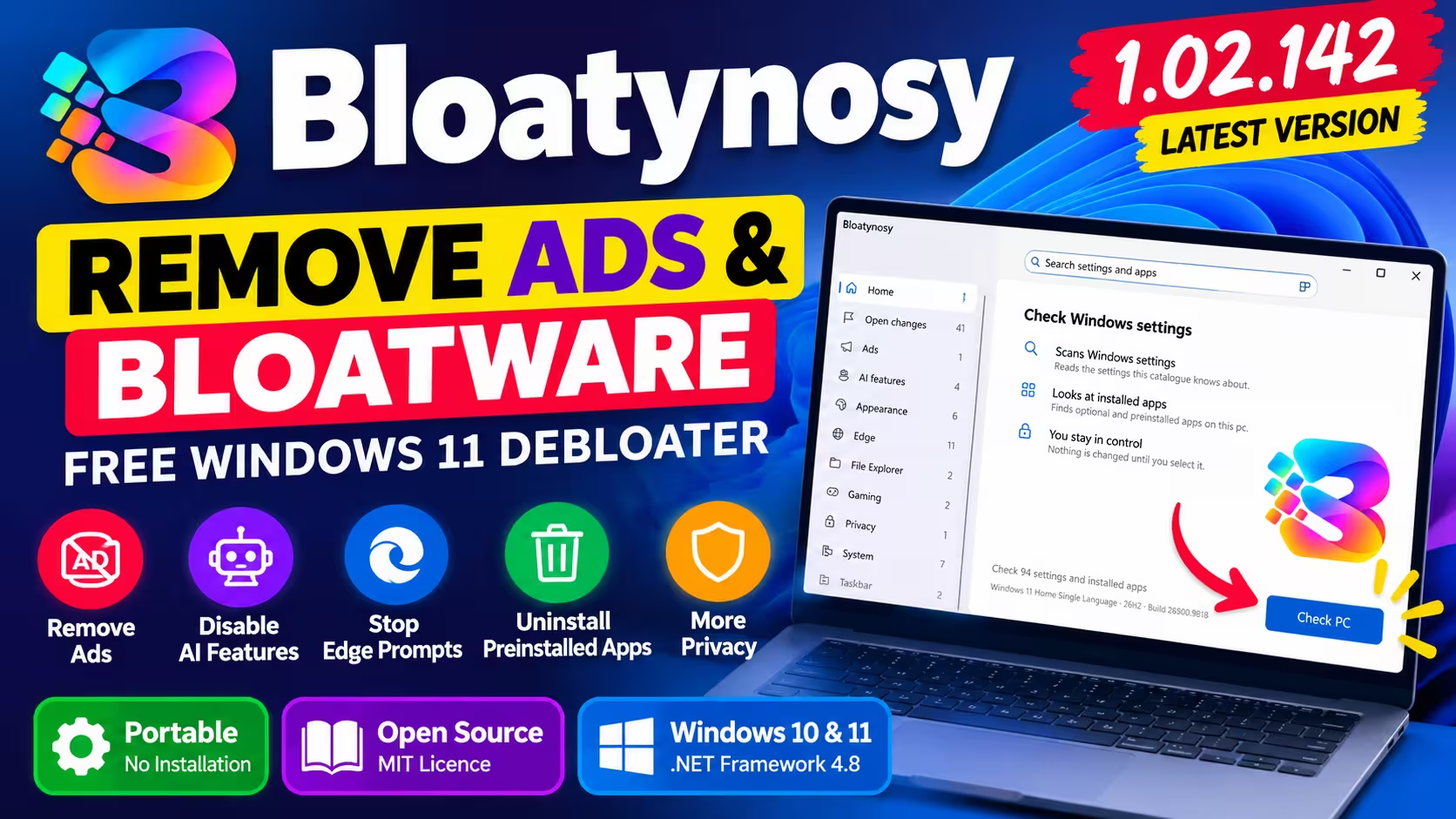
Bloatynosy is a free, open-source Windows 11 debloater that puts ad, AI, Edge and privacy controls and preinstalled-app removal in one list. You don’t have to hunt through Settings, Edge, Group Policy and the Registry. You scan your PC, review each tweak and apply only the ones you want.
I ran the new 1.02.142 build on a Windows 11 Home Single Language PC (26H2, build 26300.9818). Below is how it works, what went wrong on the first run, and how to undo changes.
What Is Bloatynosy and Why Is It Back?
Bloatynosy is a portable Windows debloater from Belim, the developer behind FlyOOBE and FluentCleaner. The project has had several lives. The classic Bloatynosy was renamed and then dropped, and its replacement, Winpilot, didn’t last either. The developer’s GitHub README says this new edition, called “Origin”, goes back to the simple one-window idea of version 0.85 and shares no code with the old app.
Each tweak changes documented registry values, and some change more than one (14 of the 98 in the current catalogue). The README says the app reads each value back afterwards and reports a failure if it doesn’t match. It doesn’t patch system files or stop services. Store apps are removed with PowerShell’s Remove-AppxPackage. Classic desktop programs are handed to their own uninstaller, and components Windows needs can’t be selected.
What you can change
The left sidebar groups everything into categories:
📢 Ads
File Explorer, lock screen, Settings, Start menu and welcome-screen promotions, plus tips and “tailored experiences”
🤖 AI features
Recall, Click to Do, Copilot on the taskbar, and AI features in Edge, Chrome, Notepad and Paint
🌐 Edge
sign-in, Collections, shopping assistant, startup boost, first-run screens and default-browser prompts
🎨 Appearance, File Explorer, Taskbar
classic context menus, Bing in Start, snap suggestions, left-aligned taskbar
🛡️ Gaming, Privacy, System, Windows Update
power throttling, Game Bar, diagnostic data, location tracking, BSOD details, and how and when updates restart your PC
📦 Installed apps
preinstalled Store apps and OEM trialware
Pros and cons
👍 Pros
- ✓Free and open source (MIT)
- ✓Portable, no installation
- ✓Shows the registry details behind each tweak
- ✓Restore option for applied settings
- ✓Optional tweak packs and saved profiles
- ✓Optional AI explanations
👎 Cons
- ✕Machine-wide settings need admin rights
- ✕Some “recommended” tweaks start pre-ticked
- ✕Uninstalled apps must be reinstalled manually
- ✕Restore writes Windows defaults, not your old custom values
- ✕Includes security-related switches that need care
- ✕AI needs your own API key; no one-click “optimise all”
How to Use Bloatynosy to Debloat Windows 11
STEP 1 OF 5
1. Download and extract
Download the ZIP from the official GitHub releases page and extract it to a folder you can write to. You’ll get Bloatynosy.exe, a config file, Newtonsoft.Json.dll and two folders, Data and Localization. Nothing needs installing. On first launch, Microsoft Defender SmartScreen showed me a warning. I clicked More info → Run anyway because I had downloaded the file from the official GitHub release. Only do the same if your copy came from that page. Don’t bypass this warning for files from anywhere else.
💡 Tip
Right-click the EXE and choose Run as administrator if you want the Edge and other machine-wide settings to work. Step 5 shows what happens if you don’t. Create a system restore point before you change anything.
STEP 2 OF 5
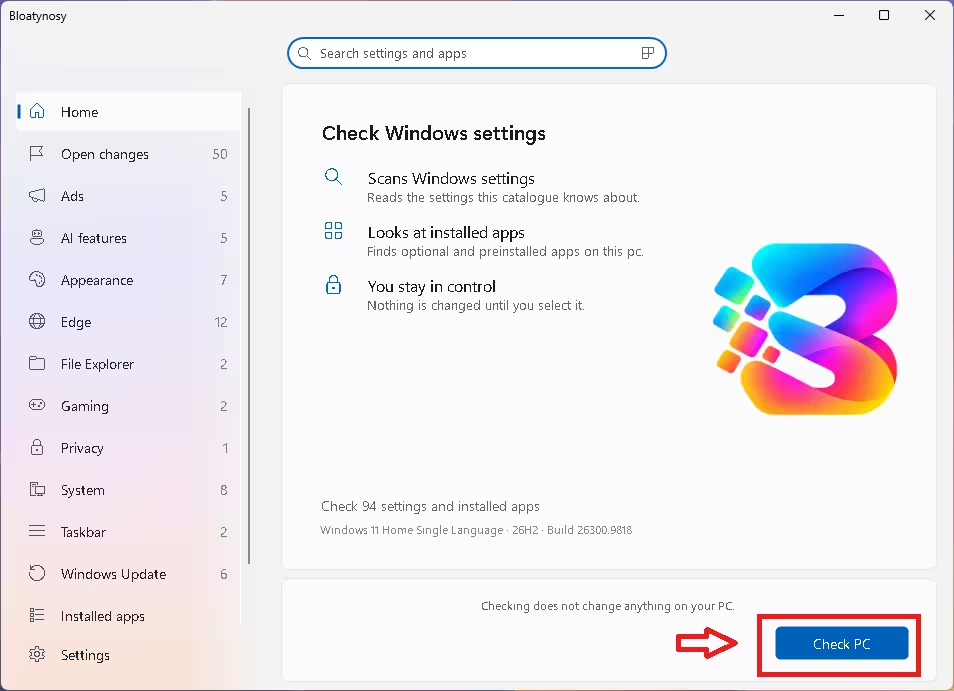
2. Click Check PC
The home screen shows how many settings and apps the catalogue knows about, plus your Windows edition and build. Click Check PC. The scan only reads your settings and doesn’t change anything. When it finishes, each category in the sidebar shows a count of items you can still change, and Open changes collects all of them in one list.
STEP 3 OF 5
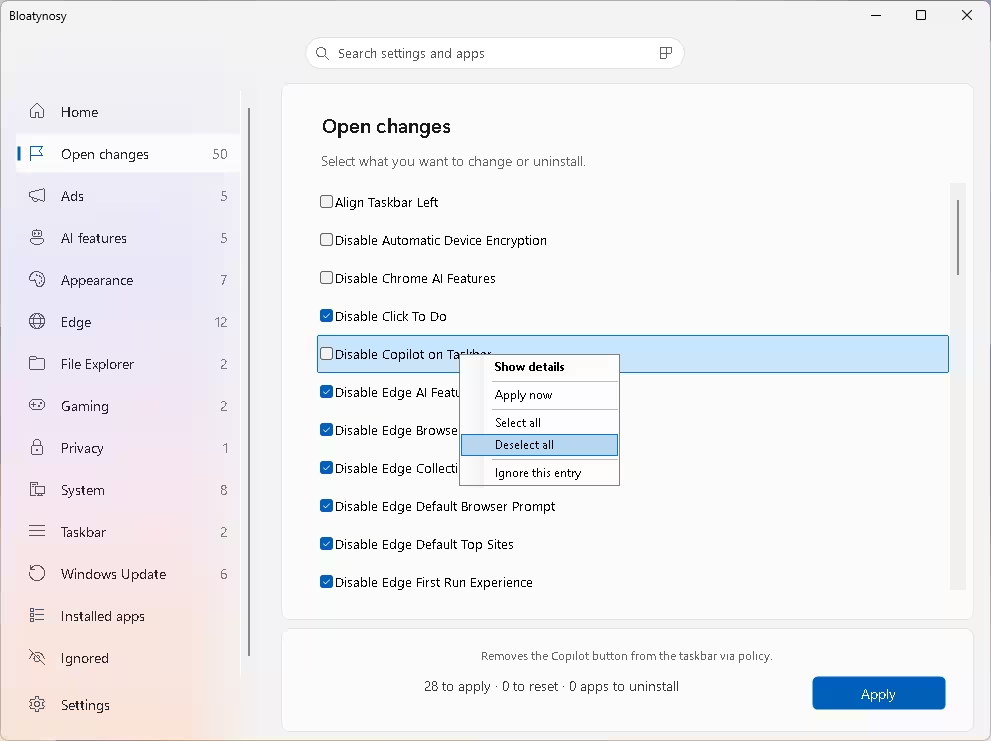
3. Deselect everything first
In Open changes, several entries were already ticked on my PC. To start with a clean slate, right-click any row and choose Deselect all. The same menu has Show details, Apply now (applies a single row instantly) and Ignore this entry, which moves the row to the Ignored list so it stops appearing.
STEP 4 OF 5
4. Pick changes, and check what each one does
Open a category and tick what you want. The panel at the bottom explains the selected row in plain English. The counter below it shows how many settings will be applied or reset and how many apps will be uninstalled. In the Ads category, I ticked File Explorer, lock screen, Settings app, tailored-experience and welcome-screen ads.
⚠️ Not every tweak is a cleanup
Some entries affect security, privacy or core Windows features rather than clutter. Pay particular attention to Disable Automatic Device Encryption in System. It stops Windows from switching on device encryption by itself on eligible PCs. A drive that is already encrypted stays encrypted, but a new or reset PC may end up without that protection. Unless you have a specific reason, leave it unticked. Read the description of every setting before you apply it.
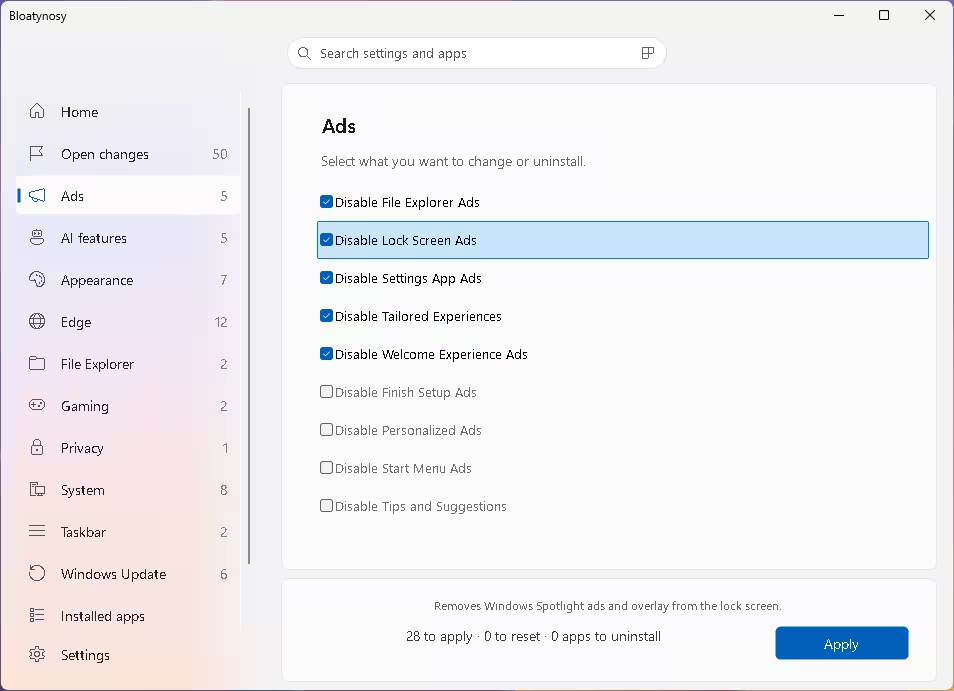
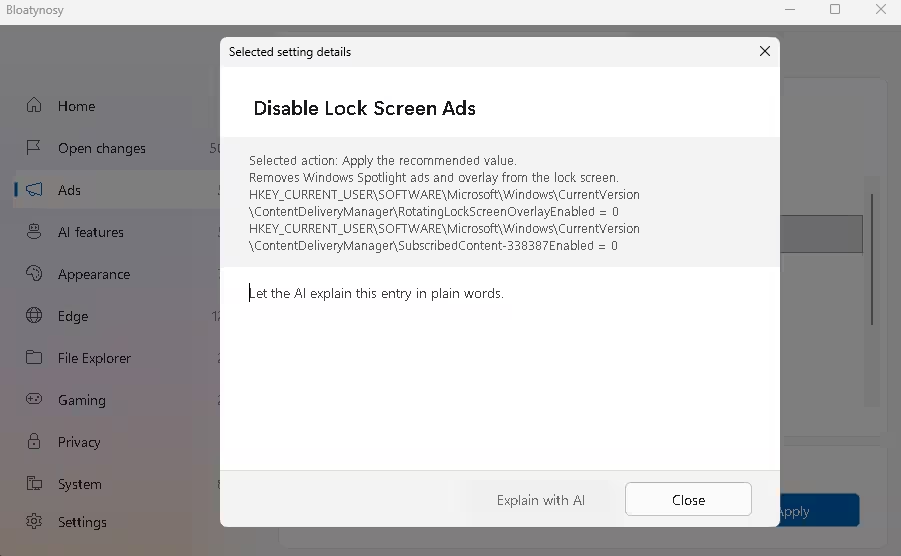
This is where Bloatynosy stands out. Right-click a row and choose Show details to see the exact registry keys and values it will write. For Disable Lock Screen Ads, that’s two values under HKCU\…\ContentDeliveryManager, both set to 0. You can check every change before you make it.
STEP 5 OF 5
5. Apply and read the report
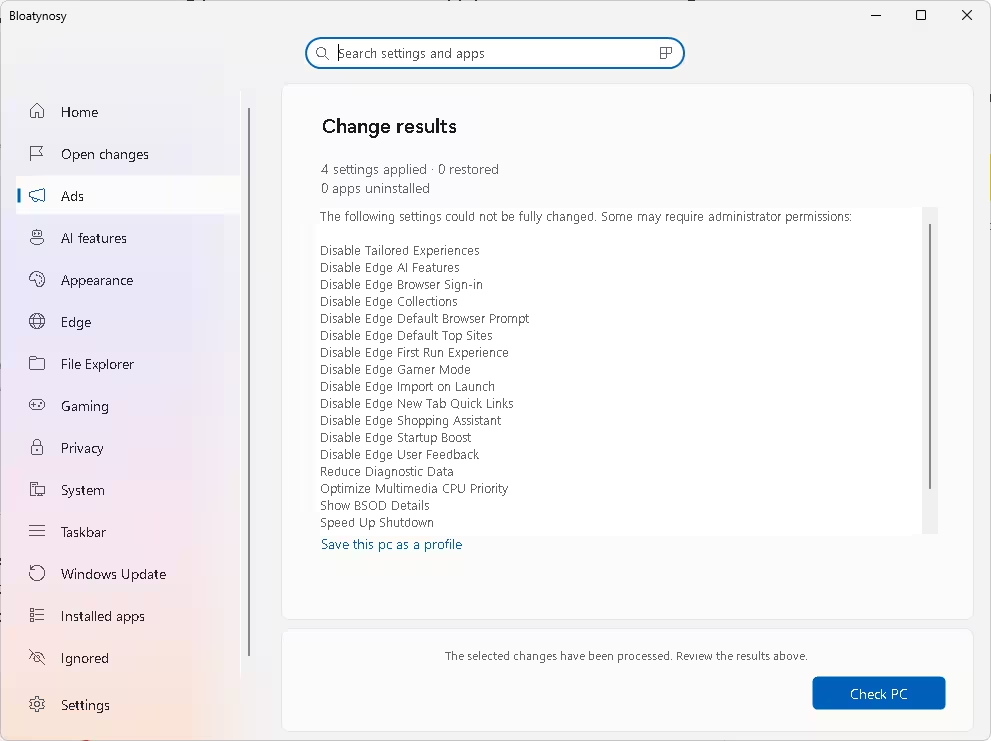
Click Apply. Bloatynosy then shows a Change results report. My first run was without admin rights, and only 4 settings applied. The list of settings it “could not fully change” included most Edge policies, Reduce Diagnostic Data, Show BSOD Details and Speed Up Shutdown. All of these are machine-wide settings. To apply them, close Bloatynosy, restart it with Run as administrator and apply again. Always check the report afterwards: a ticked box doesn’t mean Windows accepted the change. Some changes also need File Explorer or Windows to restart.
How to Undo Changes in Bloatynosy
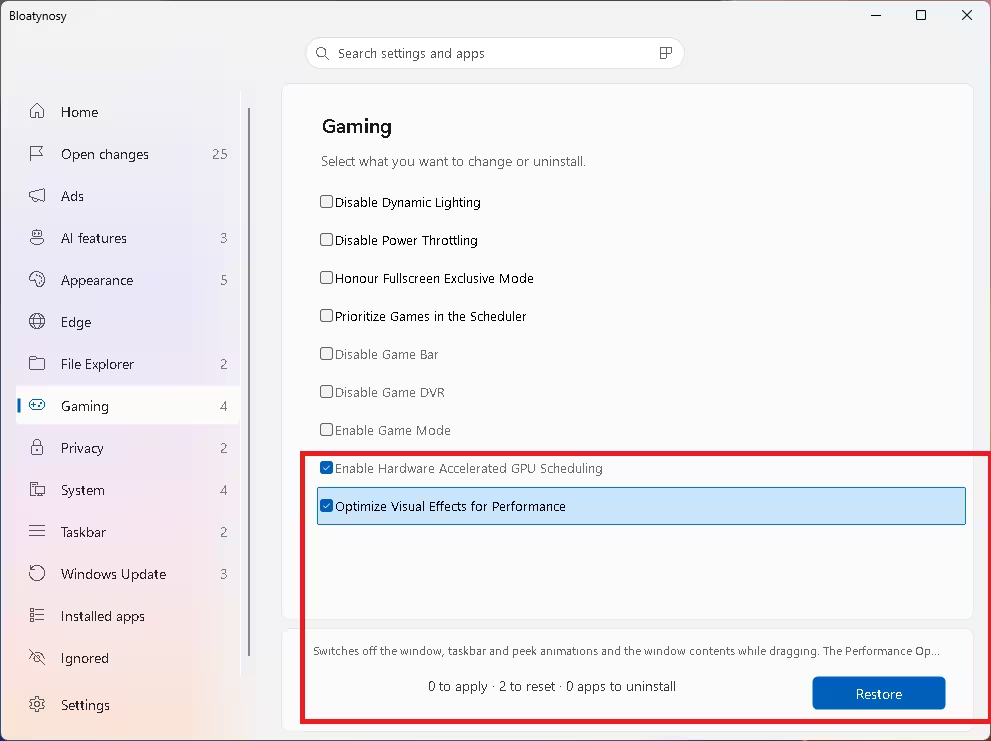
Run Check PC again and use Deselect all so nothing new gets applied by accident. Open the category you want to fix. Settings you’ve already applied appear greyed out. Tick the ones you want back, and the counter switches to “to reset” while the Apply button becomes Restore. Click it to reverse the tweak.
🔁 How Restore works
One detail matters here. Restore writes the Windows default listed in the app’s catalogue, or deletes the value it added. It doesn’t remember what the setting was before. If you had customised a setting yourself, Restore gives you the Windows default, not your old value. It’s not a full system backup either, so keep that restore point.
Uninstalled apps are the exception. Store apps have to come back from the Microsoft Store, and desktop programs from their maker’s installer.
🧪 A note on scope: my hands-on testing covered settings, registry details and restoring. I didn’t uninstall any Store apps or desktop programs for this review, so the app-removal details above come from the developer’s documentation.
Tweak Packs, Profiles and AI Explanations
Search and tweak packs
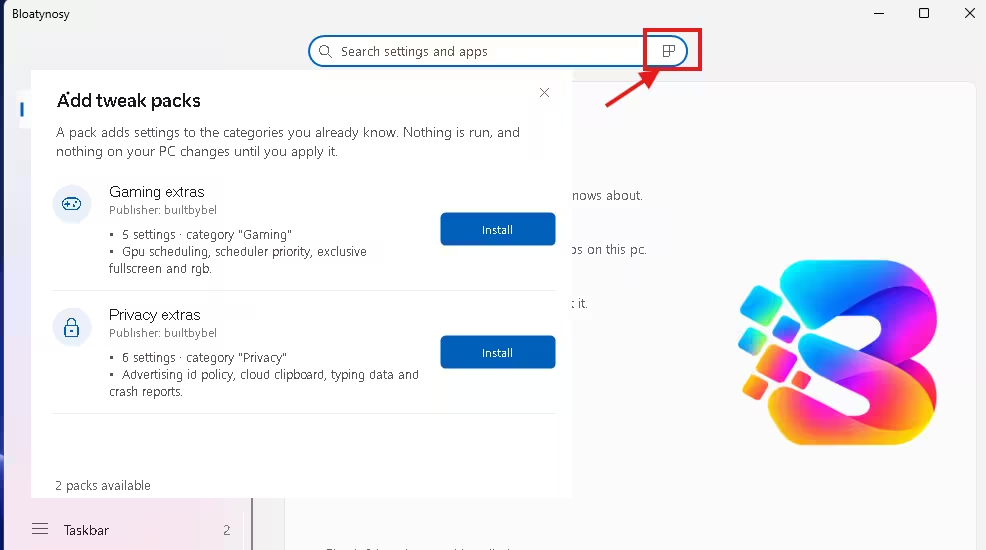
The search box at the top filters settings and apps as you type. Ctrl+F jumps to it. The small icon on the right of the search box opens Add tweak packs. Two packs were available in my copy:
🎮 Gaming extras
5 settings
GPU scheduling, scheduler priority, fullscreen exclusive mode and RGB lighting
🔒 Privacy extras
6 settings
advertising ID policy, cloud clipboard, typing data and crash reports
Installing a pack only adds entries to the list. It doesn’t change anything in Windows. According to the release notes, packs are plain-text .ini files that the app never runs, so you can open one and read it first. After I installed both packs, the home screen’s count went from 94 to 105 settings and apps.
Save your setup as a profile
After applying changes, the report offers Save this pc as a profile, which saves a .json file. It’s useful if you set up several PCs the same way. In Settings, Update catalog downloads the developer’s latest catalogue of settings without a new app release.
Optional AI explanations
✨ Bring your own key
You can turn on Enable AI explanations in Settings, pick Groq, OpenAI, Anthropic or an OpenAI-compatible provider, and paste your own API key. The Explain with AI button in the details window then explains the setting in plain words. The feature is off by default. The README says only the selected entry’s name and technical details are sent, not a scan of your PC. Check how your chosen provider handles API requests before you enable it. Once you add a key, treat the app’s configuration files as sensitive. Don’t share the Bloatynosy folder without checking what’s in it first.
Bloatynosy vs Other Free Debloaters
If you prefer a script, Win11Debloat does a similar job from PowerShell. Winhance covers more ground, including performance and UI tweaks, but it’s a bigger app. Bloatynosy’s strengths are its small size and the fact that it shows the registry details behind every tweak. For the manual route and more options, see our full guide to debloating Windows 11.
FAQ
Is Bloatynosy safe to use?
The source code is open, it’s MIT-licensed, and it scans without changing anything. Each tweak shows its registry details, and applied settings can be restored. App uninstalls are different: removed apps have to be reinstalled manually. The risk comes from what you choose to apply, so download only from GitHub, make a restore point first, and read each entry before you tick it.
Does Bloatynosy need administrator rights?
Not to start. User-level settings work without it. Machine-wide ones, such as most Edge policies and diagnostic data, failed on my PC without admin rights. Right-click the EXE and choose Run as administrator to include them.
Can I undo changes made with Bloatynosy?
Yes, for settings. Re-run Check PC, tick the greyed-out applied items and click Restore, which sets them back to Windows’ defaults. Uninstalled apps can’t be restored this way and need reinstalling.
Does Bloatynosy work on Windows 10?
The developer lists Windows 10 and 11 with .NET Framework 4.8. Some settings target Windows 11-only features such as Copilot and Click to Do, so they won’t apply on Windows 10.
Do I need an AI API key to use Bloatynosy?
No. AI explanations are optional and off by default. Everything else, including the registry details for each setting, works without a key.
✅ Verdict
Bloatynosy 1.02.142 is a simpler, more transparent debloater than its earlier versions. It scans first, explains each setting, shows the registry details behind it, and can restore applied settings. Untick the pre-selected recommendations, run it as administrator if you want Edge and system policies applied, and be careful with app uninstalls.
👍 Best for
Windows 11 users who want ads and AI extras gone and want to see each change.
👎 Skip if
You want a one-click “optimise everything” button.


